Sending a document to another organization
Partners on Tasdiqly receive your signed document straight into their own system, sign it with E-IMZO and send it back — both sides keep an identical signed original with one verification code, no paper and no couriers.
Step by step
- Finish the document’s route first: only a signed (or registered) document can be sent. Then press Send to organization on the document page.
- Find the receiver by its 9-digit TIN (or by name). Check the Verified badge, choose the purpose — Signature, Approval or Acknowledgement — and optionally a deadline and a cover message, then press Send.
- HR documents and documents about an employee need the legal basis of the personal-data transfer (contract, legal obligation or the employee’s consent) — the dialog asks for it.
- Follow the status in Exchange → Outgoing and on the document’s Exchange tab: delivered, registered, signed. The partner’s signatures appear in your Signatures under their organization.
- Returned for changes? Edit the document, run its route again and press Send new version — the partner gets round 2 of the same exchange. Changed your mind before the partner registered it? Withdraw (with a reason); after registration it can no longer be withdrawn.
- Verification: one code is printed on both organizations’ copies; the verify page (QR) shows both parties, their signatures and the file hash.
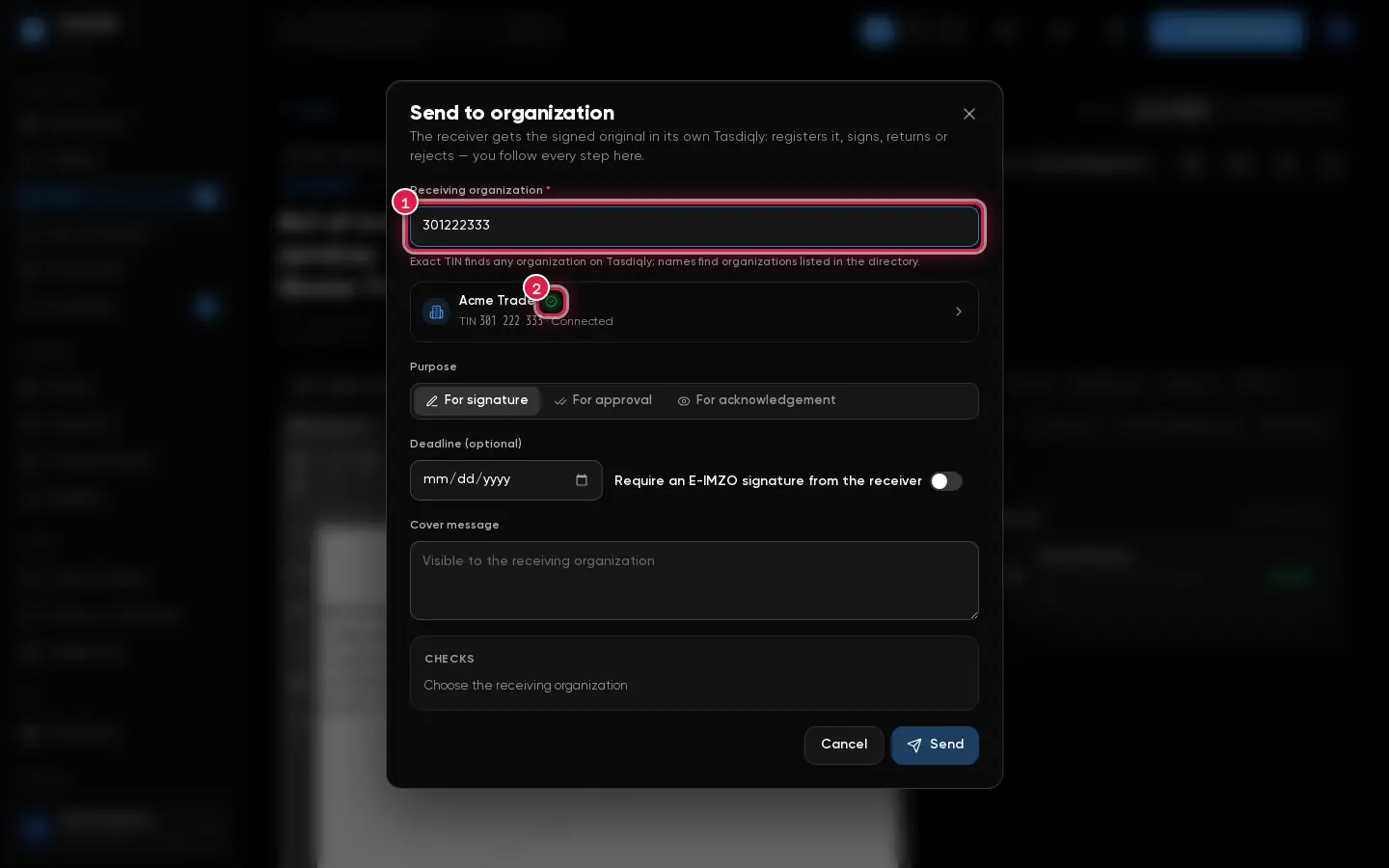
- TIN or name
- Verified organization
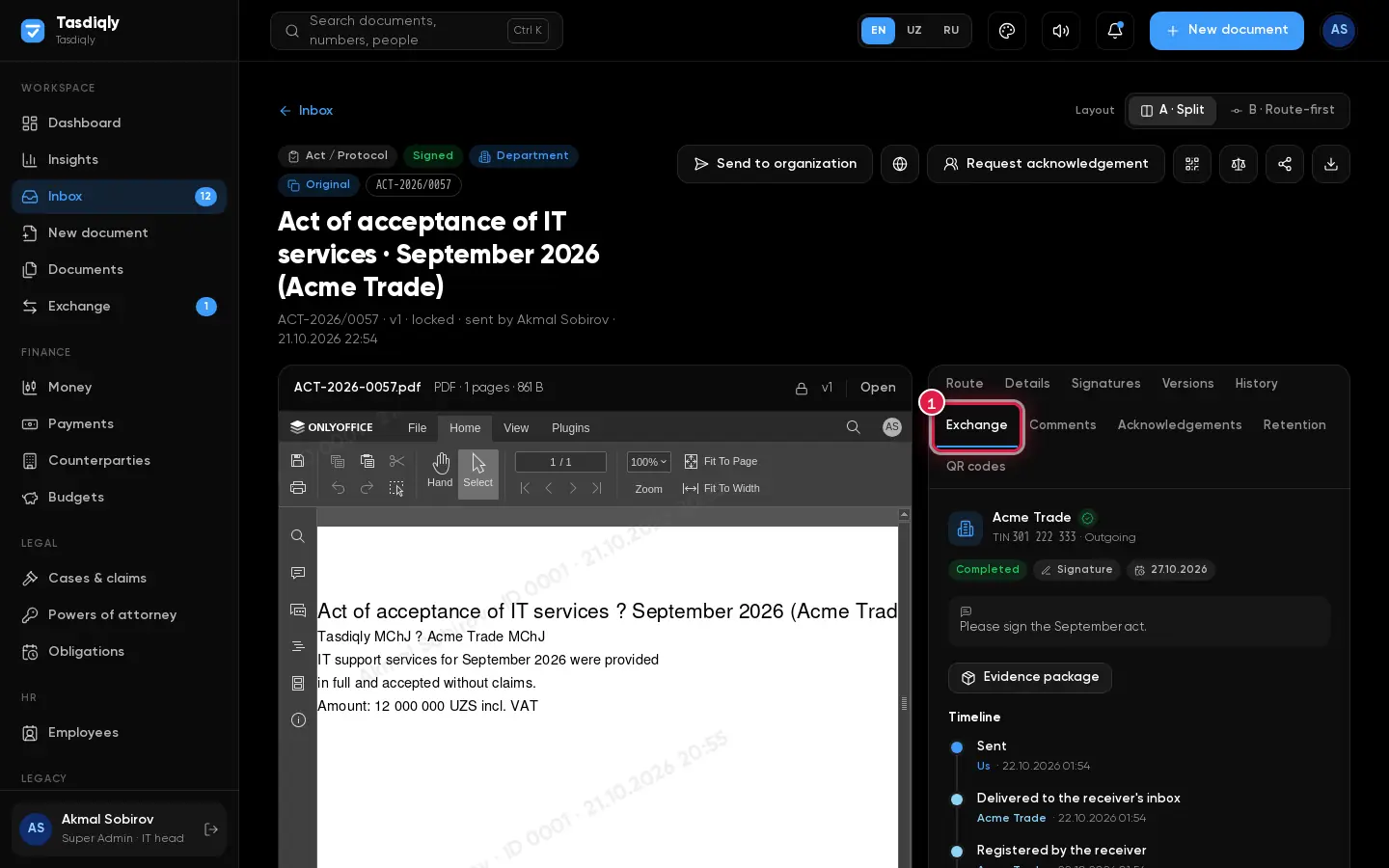
- Exchange tab
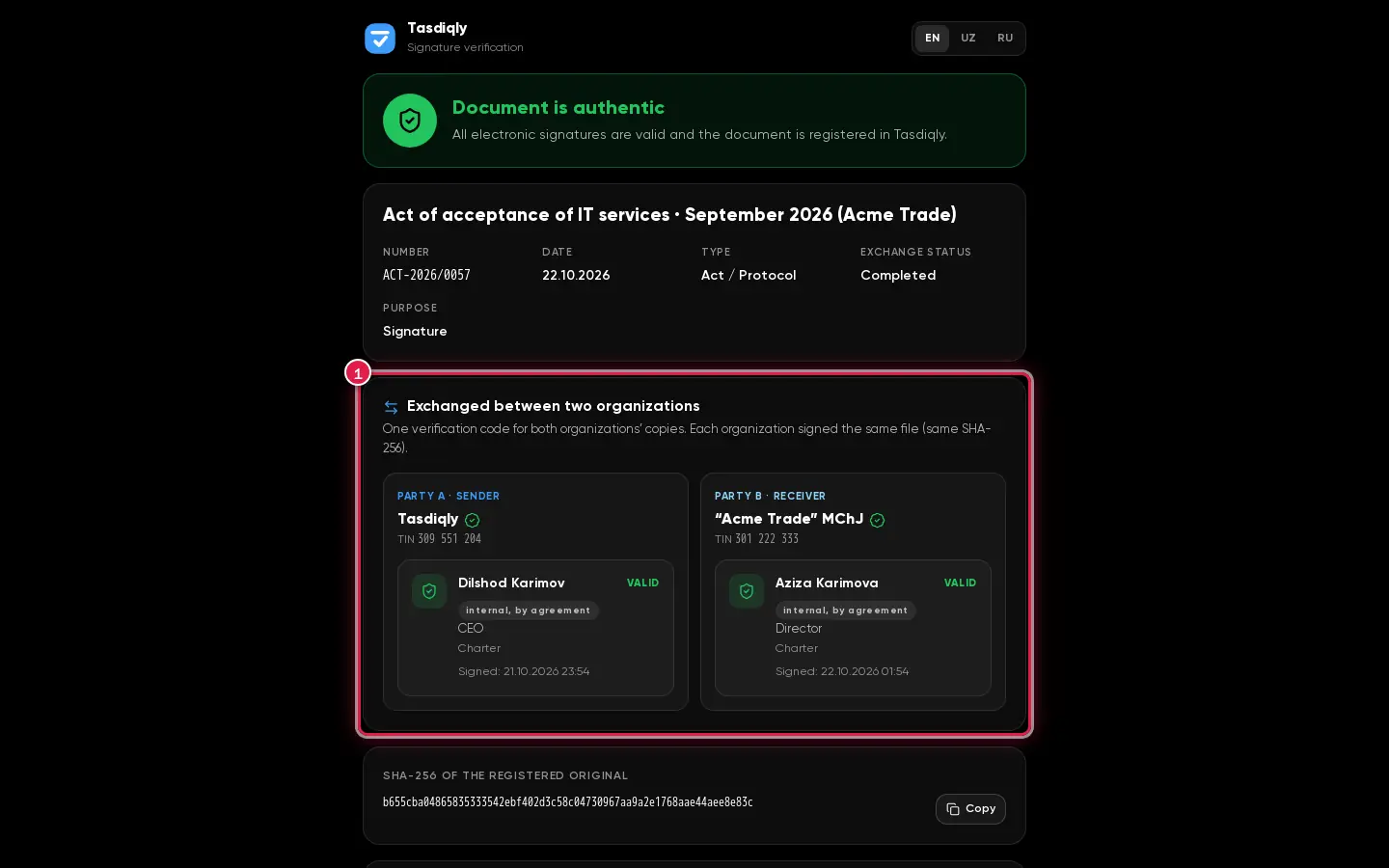
- Party A and Party B
Common mistakes
- Sending tax e-invoices (ESF) or e-waybills — they are exchanged only through licensed operators, Tasdiqly refuses them.
Tips
- The partner is not on Tasdiqly? The dialog offers a secure external link (the counterparty opens it and confirms with a one-time code) — and an invitation to join Tasdiqly.
- Who can send: super admins, registrars, legal and finance staff, department heads for their department’s documents; HR documents — HR staff.