Users, roles and MFA policy
Roles decide what each person can see and do. Give people only the roles they need — fewer super administrators means fewer ways for a mistake or a leaked password to reach everything.
Step by step
- Open Admin → Users and press Add user.
- Fill Last name, First name, Username (Latin, e.g.
a.karimov), Email, Position, Department and an Initial password. Keep Change at first login on. - Click the role chips the person needs (see the table below), press Add user, and hand over the username and initial password personally or by phone — never in a group chat.
- Many people at once: Import CSV with columns
username, full_name, email, position, department_code, roles. - MFA policy: in Settings → Security the setting "Roles that must use MFA" lists roles that are forced to enrol an authenticator (default: super_admin, dept_head). Add legal, finance and registrar if they sign or register documents.
- When someone leaves, use Offboard on their row — pending tasks are reassigned and access is revoked, while their signatures stay valid.
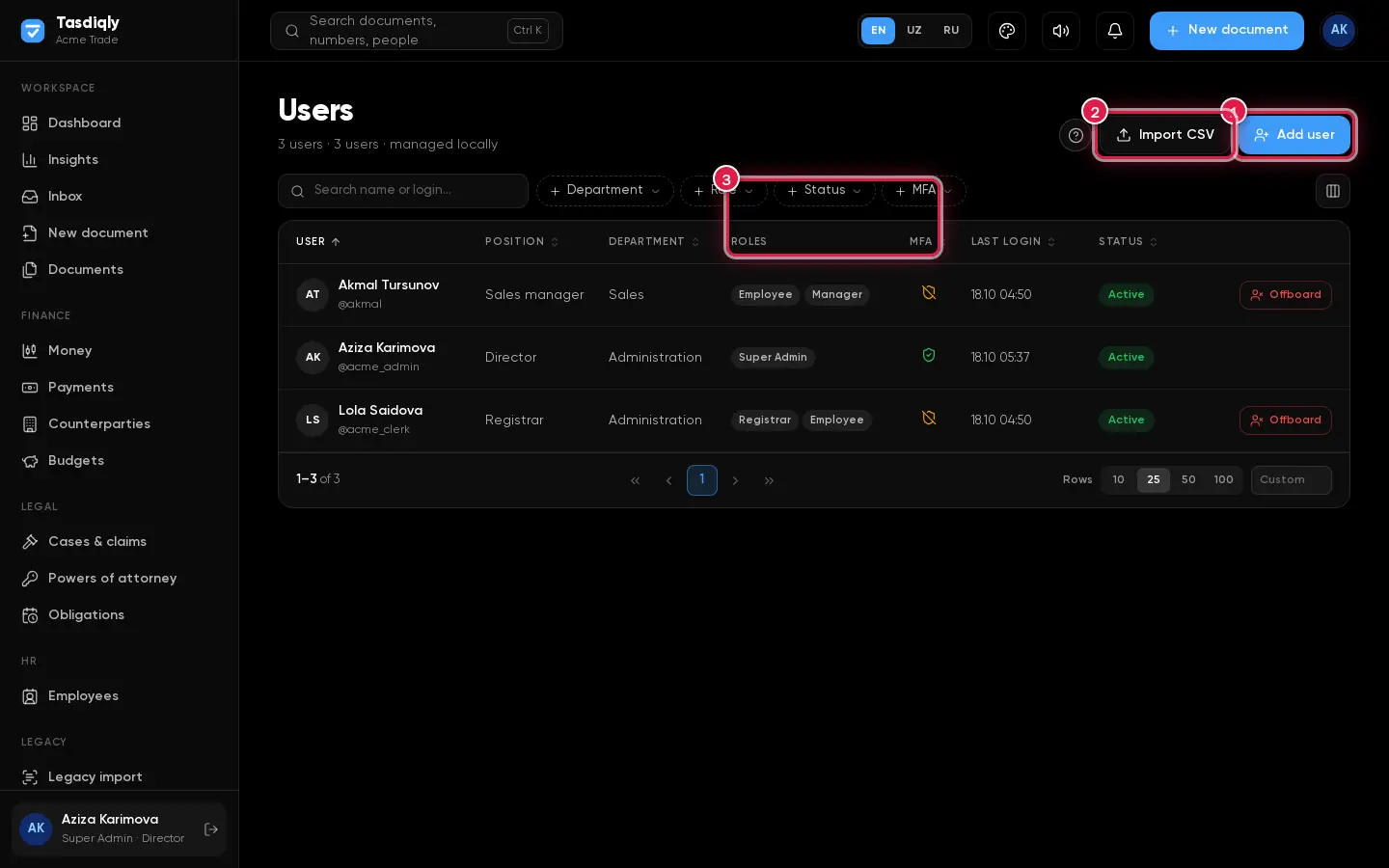
- Add user
- Import CSV
- Roles and MFA columns
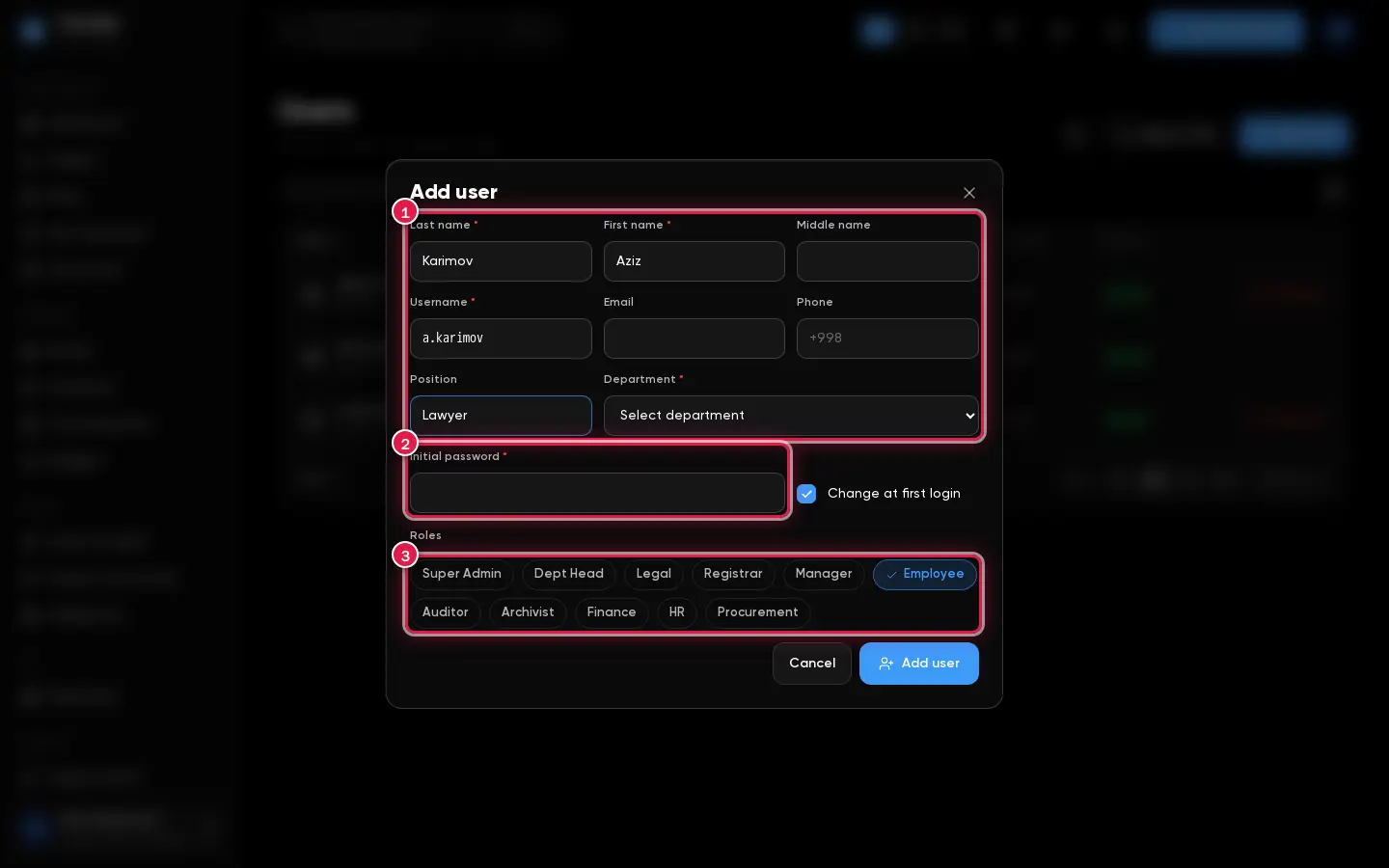
- Name, username, department
- Initial password
- Role chips
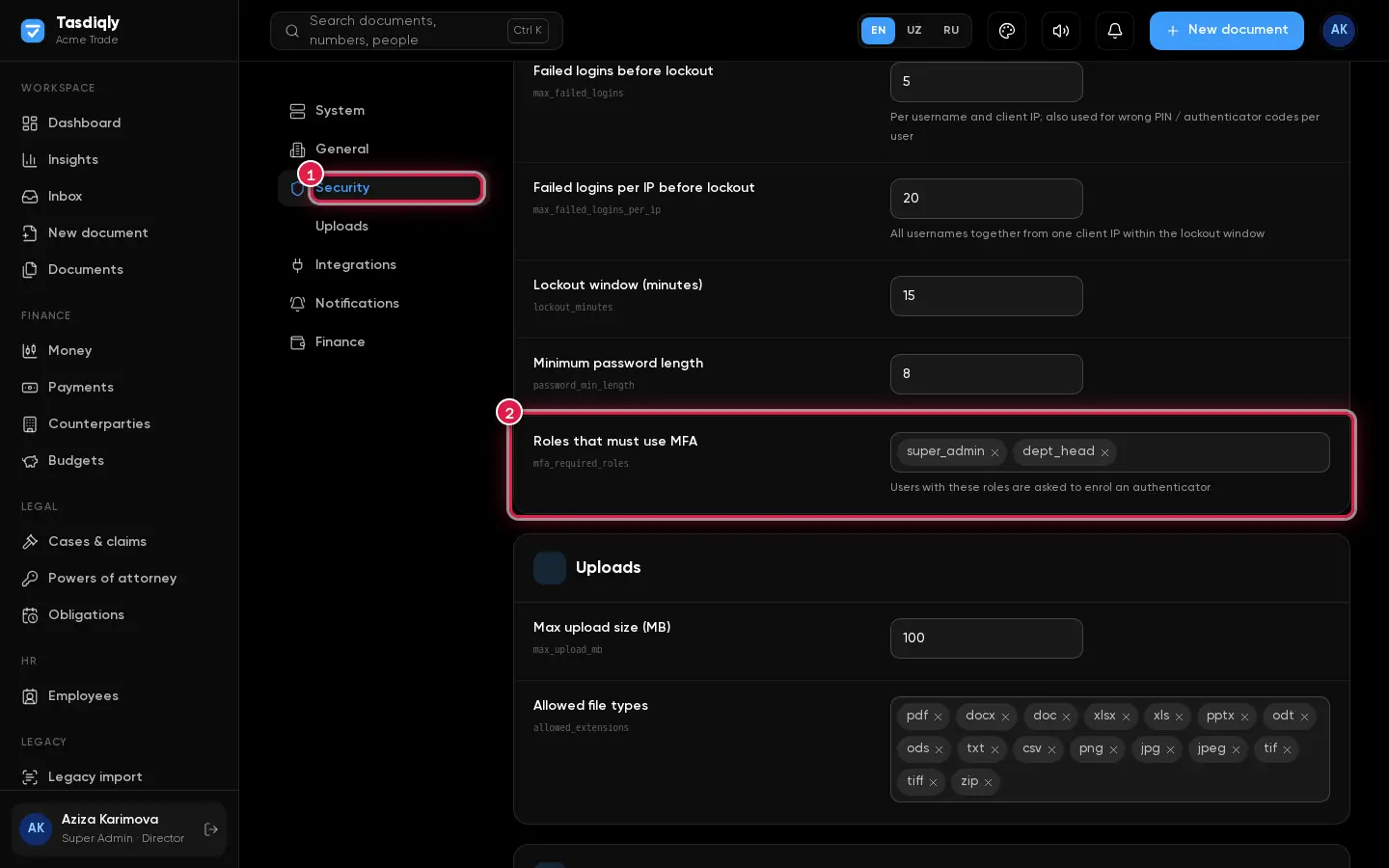
- Security section
- Roles that must use MFA
Common mistakes
- Making everyone a Super Admin "to save time". Grant registrar, legal or finance instead.
- One shared account for a department. Signatures and the audit log must show a real person.
- Only one super administrator: if they are on leave, nobody can fix settings. Keep two, both with MFA.
Tips
- Roles: Super Admin — everything incl. settings and users; Dept Head — heads a department, sees its documents and insights; Registrar (devonxona) — registers incoming/outgoing letters, journals, delivery; Legal — legal review, contracts, cases, powers of attorney; Finance — invoices, payments, budgets; HR — personnel orders and employee files; Procurement — purchase requests; Manager — insights for their area; Auditor — read-only audit log and statistics; Archivist — retention and archive; Employee — creates documents and works in the inbox.