Templates on your company blank
A template turns your official Word blank into a form: employees fill a few fields and get a correctly formatted document with the right route, numbering and confidentiality. This is where most time is saved — and where most formatting mistakes disappear.
Step by step
- Open Setup → Templates and press New template. Enter Name, choose Document type and (optionally) a Department, press Create.
- On the Body tab drop your blank (.docx) into the drop zone or press Upload DOCX. The document opens in the editor with the Variables panel on the right.
- Place variables: click a variable in the panel (it is copied), click in the document where the value belongs and press Ctrl+V. You can also type placeholders yourself, e.g.
{{ contract_no }},{{ amount | money }}. Automatic ones (registration number, date, author, counterparty) are under Filled automatically. - Press Refresh from editor so Tasdiqly reads the placeholders you typed. Every field shows ✓ in document or ! not placed yet.
- Open Form schema. Under Placeholders in DOCX without a field press Add all as fields — a form field is created for each placeholder. Adjust Label, Type (Money, Date, Select…) and Required.
- Check Default route, Numbering and Access (Default confidentiality), press Test render to see a filled example, then Publish v1. Published versions are read-only; for changes use Create new draft.
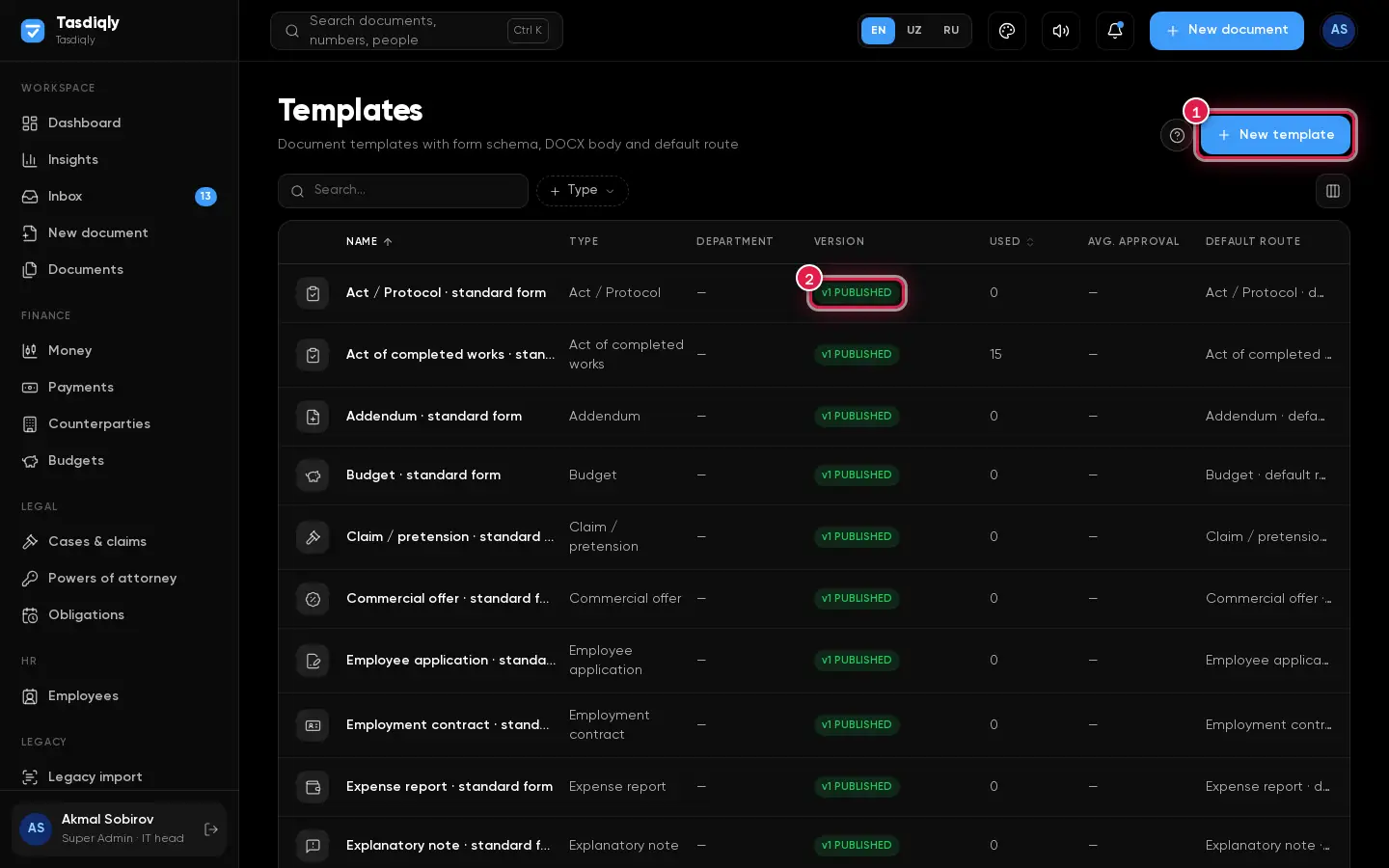
- New template
- Version: published or draft
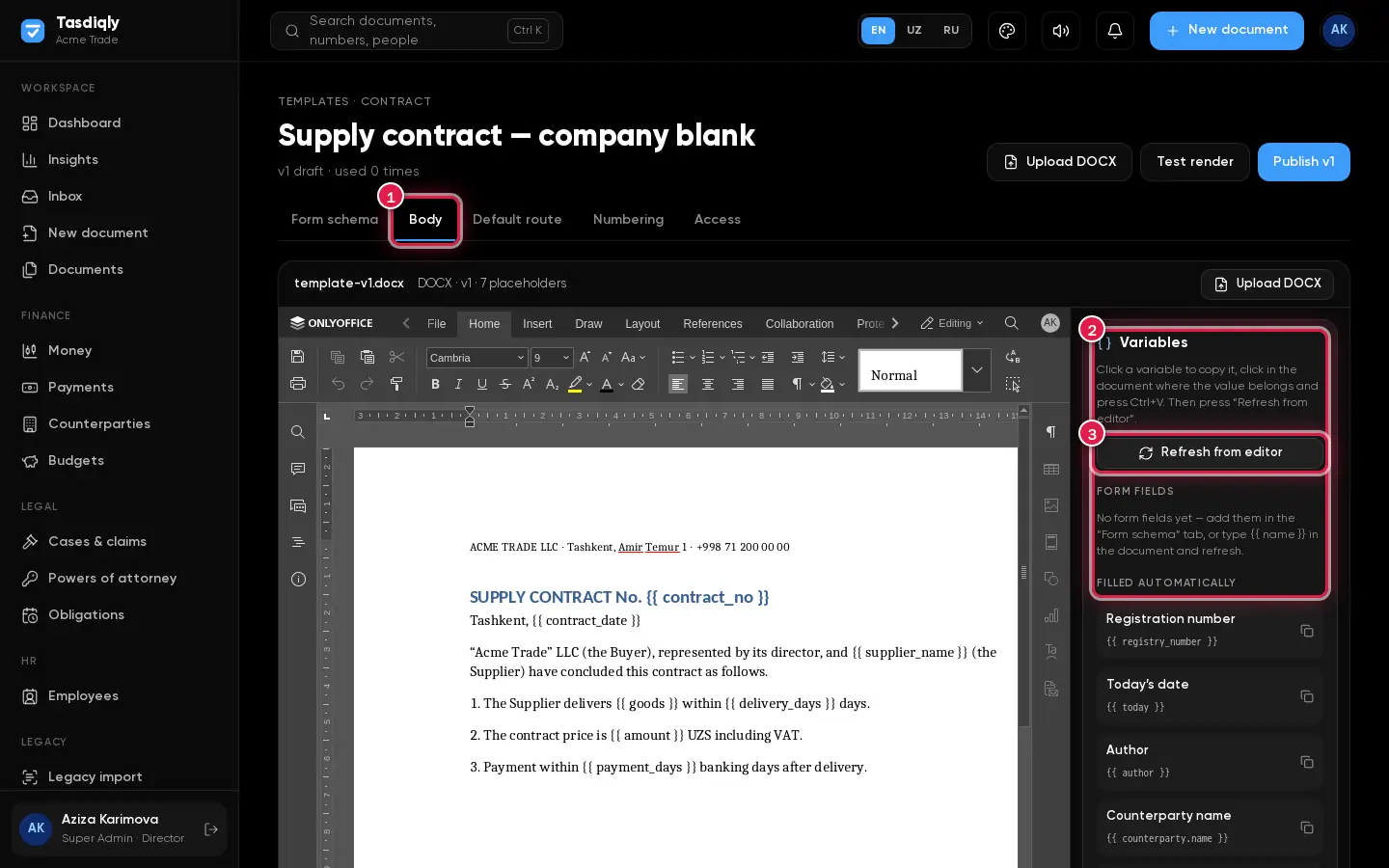
- Body tab
- Variables: click to copy, paste with Ctrl+V
- Refresh from editor
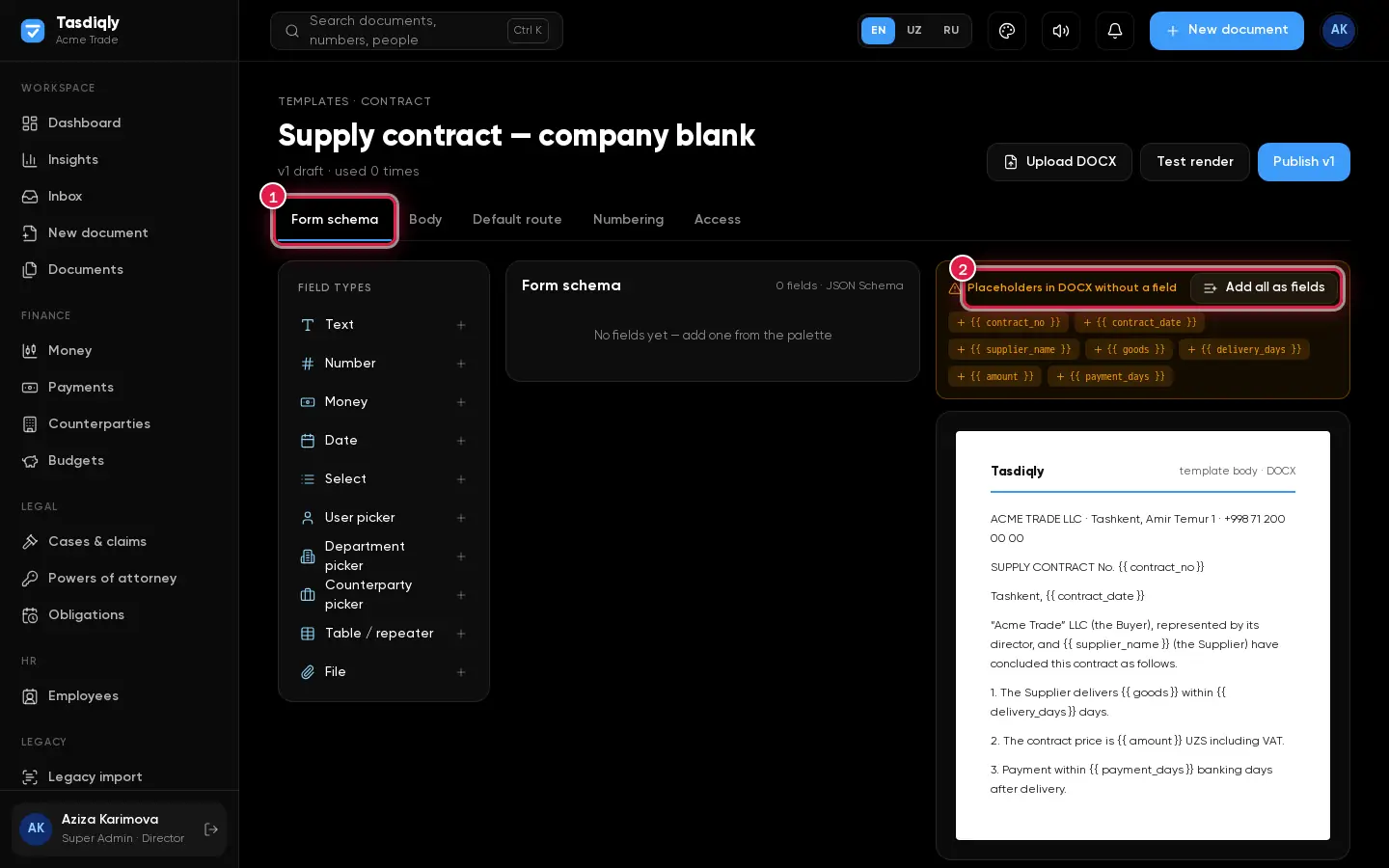
- Form schema tab
- Add all as fields
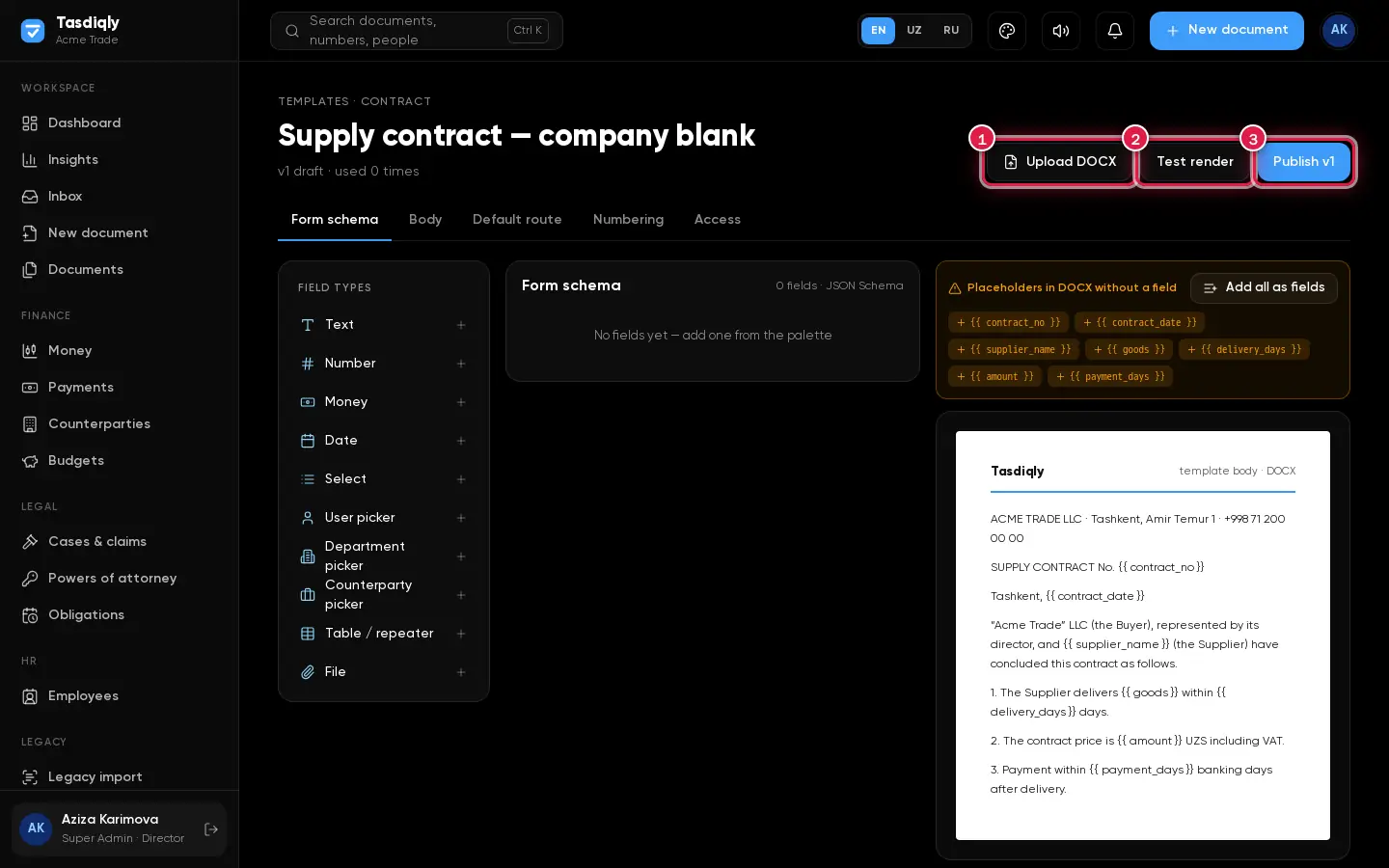
- Upload DOCX
- Test render
- Publish
Common mistakes
- Typing placeholders with Word’s “smart quotes” or splitting them with formatting — type
{{ name }}in one go, in one font. - Forgetting Refresh from editor — then Add all as fields doesn’t see your new placeholders.
- Publishing with fields marked ! not placed yet — the value is collected but never printed.
Tips
- QR codes on your blank: in the Variables panel the QR codes group lists markers such as
[[QR1]]— paste them where an approver’s or signer’s QR should be printed (also in tables, headers and footers). On Default route → QR codes (defaults for new documents) choose who appears at each marker and the mode (Automatic, Only at markers, Approval sheet only). Documents created from the template inherit this; the “Kelishuv va imzolar varag‘i” sheet is always added.