Organization profile, requisites and logo
Requisites are printed in document headers, outgoing letters, contracts and e-mails. A wrong TIN or bank account in a signed contract is expensive to fix. The logo appears on your sign-in page so employees know they are in the right place.
Step by step
- In the side menu open Admin → Settings and choose the General section on the left.
- Fill in "Organisation name", "Legal name", "STIR / TIN", "Address", "Director (signs documents)", "Bank", "Bank MFO", "Settlement account" and "VAT payer code" exactly as in your registration certificate. (These setting names are shown in English in every language.)
- Set "Default language" and "Default UI theme" — new users start with them.
- Press Save changes in the bar at the bottom and confirm with your PIN and authenticator code (Confirm it’s you → Verify).
- Logo: open Admin → Plan & usage, find the Logo (login page) card and press Upload PNG / JPEG (up to 1 MB, a square or wide image on a transparent background looks best).
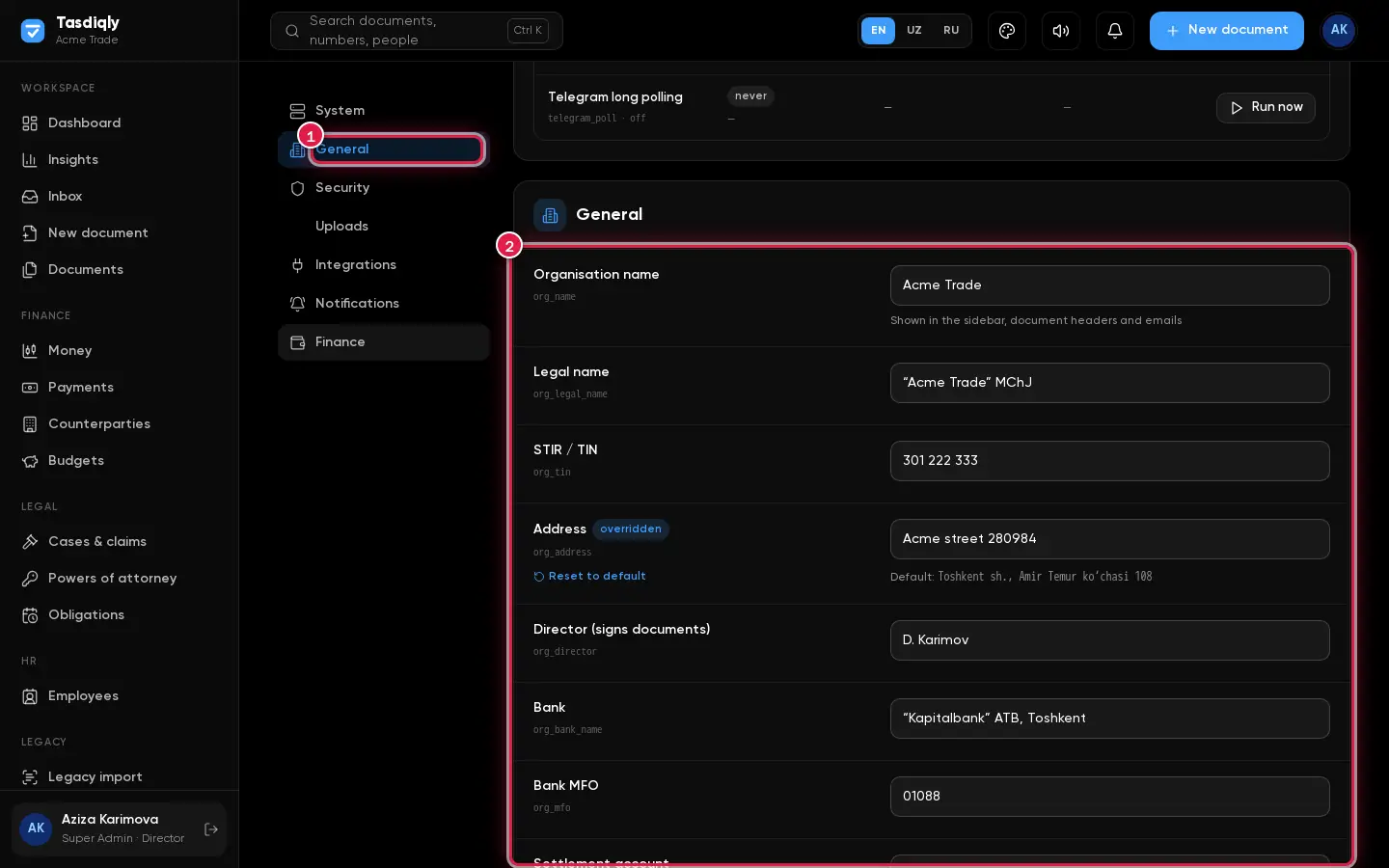
- General section
- Name, legal name, TIN, address, director, bank
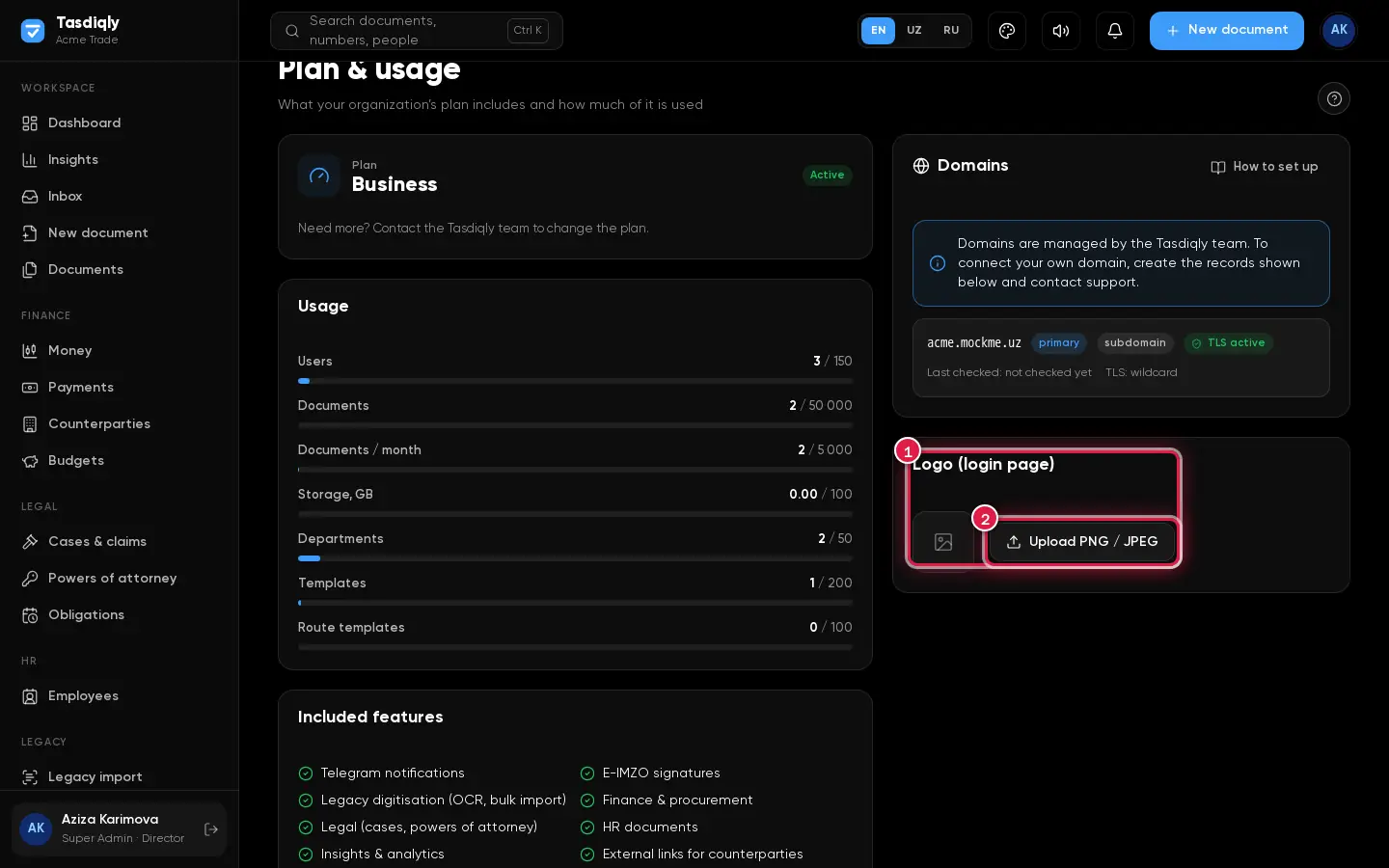
- Logo card
- Upload PNG / JPEG
Common mistakes
- Typing the TIN with letters or the bank account without the MFO — check against the bank statement.
- Changing "Public URL" — it is managed by the Tasdiqly team; a wrong value breaks links in e-mails and QR codes.